Synchronize the Model and the Display
The relationship between a Model and a display can be defined in these 3 ways:
(Type A) A display is a complete representation of the Model defined in the database. This is the type of display that you have when you click New Model, Import Model, or Assign Model to Display on the File menu, and check the 'Keep Model and Display Synchronized' checkbox.
When a Model is in sync with the display, any changes you make to the display are then reflected in the Model when you do an AF Check In. In addition, changes you make in the Model are automatically reflected in the display
(Type B) A display is associated with a model. This relationship allows you to display only parts of the Model if you choose. It is the type of display that you have when you click New Model, Import Model, or Assign Model to Display on the File menu, and do not check the 'Keep Model and Display Synchronized' checkbox.
(Type C) A display shows only selected Elements. This is the type of display that you have when you click New Display on the File menu, and then place elements or values on the display.
If a display is not synchronized with the model, you can make changes to either one without affecting the other. For example, when you delete an Element from an unsynchronized display, the Element remains in the model. One of the reasons for doing this is to provide multiple views of the same logical model. Each display could be orientated towards one area or aspect of the model.
If you make changes to a type A Model outside of Modeler (in System Explorer or in Excel, for example), and then re-open the display in Modeler, the "Synchronize" window opens (see Figure 153).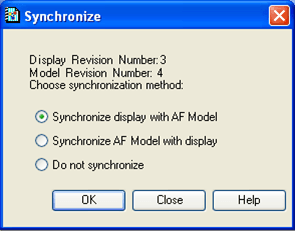
Changes that cause the "Synchronize" dialog window to open include: Adding/Removing Elements, Connections, or Layers; Modifying Layers; Modifying anything directly associated with the model (description or attributes); Modifying the Template associated with a model. Note that this dialog box appears only when the Model is of type "A".
The Synchronize AF Model with Display option is an action to take for type A models, described above. Its use represents a special Case and cannot always fully synchronize the display with the model. The reason for this is that the display does not hold enough information, for example, to create an element. One reason for choosing this option is to save different versions of a model (more than one .pdi file). Then, if you want to use an older version, you can open one of the .pdi files and synchronize the AF Model with it. When done, you could use the Undo Checkout option to revert back to the current database.
For a type "B" displays, do not synchronize when you first create or import the model. This prevents in the "Synchronize" window from opening.